How to Reboot Your Router — the right way, step by step
Rebooting your router fixes slow, dropped, and glitchy internet more often than any other trick — but only if you do it right. Here’s the correct power-cycle order, exactly how long to wait, and the difference between a reboot and a reset (get that wrong and you’ll wipe your Wi-Fi). Plus a free guided tool that times it for you.
By Byron Johnson — Founder of Johnson Creative & engineer behind Keep Connect
Written by a networking hardware engineerUpdated July 2026
Reboot along with the timer
Don’t guess how long to wait. This walks you through the exact sequence and counts down each step for you — so the reboot actually sticks.
Reboot your router the right way
A timed, foolproof walk-through of the exact power-cycle order — so you wait long enough and bring everything back in the sequence that actually works. Takes about 4–5 minutes.
No app, no sign-up. Nothing leaves your browser.
A router is a small computer, and like any computer it gets slow, confused, and clogged the longer it runs without a restart. Rebooting it clears that buildup and re-establishes a clean connection with your provider — which is exactly why “have you tried turning it off and on again?” is the first thing every tech-support agent says. But there’s a right way and a wrong way. Here’s the whole procedure at a glance:
Unplug the router from power
10 secGo straight to the power. Pull the power adapter out of the back of your router — and out of your modem too, if it’s a separate box. Unplug at the wall or at the device itself.
Why not just use the power button?On a lot of routers the power button only puts the radios to sleep; it doesn’t fully cut power or clear the memory. Physically unplugging guarantees a complete power-down — the whole point of the exercise. If your router has a removable battery backup, take that out too.
Not sure which of the two boxes is the router and which is the modem? Here’s how to tell them apart — and why the order matters when they go back on.
Wait a full 30 seconds
Most-skipped step 30 secThis is the step everyone rushes, and it’s the one that makes the reboot actually work. Once the router is unplugged, count to 30 before you do anything else. Ten seconds is the bare minimum; thirty is the sweet spot.
Why the wait matters:
- It lets the hardware fully power down and clear its working memory — where the glitches, leaks, and stale data live.
- It gives the capacitors time to drain, so the device truly resets instead of limping back with the same bad state.
- It gives your ISP a moment to release the old connection, so your equipment negotiates a fresh one (often a new IP address) when it comes back.
Leaving it unplugged for a full minute doesn’t hurt and can help with a stubborn modem. Use the guided tool above if you want it timed for you.
Power the modem back on first
2 minOrder matters here. Plug your modem back in first — the modem is what establishes the connection to your internet provider, so it has to be fully awake before anything else tries to connect through it.
Wait until the modem’s lights are solid and stable— usually about two minutes. You’re typically looking for a steady power light, a steady downstream/upstream light, and a solid online/internet light rather than anything blinking.
Have a single combined modem-router (a gateway)? Then there’s just one box to plug in, and this order doesn’t apply — power it on and wait for it to come fully online.
Power the router back on
2 minWith the modem online, plug the router back in. Give it another two minutes or so to boot up completely and start broadcasting your Wi-Fi networks again.
It’s normal for the lights to flash through a startup sequence during this time. Resist the urge to unplug it again mid-boot — let it finish. Your phones, laptops, and smart-home devices will reconnect on their own once the network is back, though a few stubborn devices may need their Wi-Fi toggled off and on.
Confirm you're back online
Once the lights are settled, load a website you know is reliable, or — better — run a quick speed test to make sure you’re not just online but back to full speed.
Use the free speed test to compare your download and upload against what your plan advertises. If a reboot brought your numbers back up, you just confirmed the router was the culprit — and you now know the fix. If it’s still slow, the problem is likely elsewhere (your Wi-Fi signal, a bandwidth hog, or your ISP), not something another reboot will solve.
Four ways to reboot a router
Unplugging it is the gold standard, but it’s not the only way. Here’s how the options stack up — and when each one makes sense.
Power cycle (unplug it)
The gold standard. Pull the plug, wait 30 seconds, plug it back in. Clears the most gunk and always works — it's the whole guide below.
The power button
Faster but gentler — some routers only sleep the radios rather than fully power down. Fine for a quick nudge; unplug for a real reset.
From the admin page or app
Log in at 192.168.1.1 (or your router's app) and hit Reboot/Restart. Handy when the router is out of reach — but you have to remember to do it.
Automatically, on a schedule
A rebooter like Keep Connect power-cycles the router the moment your connection drops — and on a set schedule — with zero effort from you.
The catch: you have to actually remember
Let’s be honest about why you’re here. You searched how to reboot your router— which means you’ve almost certainly done this before, probably more than once this month. And that’s the real problem with rebooting: it works, but the benefit comes from doing it regularly, and the moment your connection drops — usually when you’re asleep, on a call, or out of the house. Nobody keeps that up by hand. That gap is exactly what an automatic rebooter closes.
How often shouldyou reboot if you’re doing it yourself? For most homes, about once a month is the sweet spot — more if your connection gets flaky. And if you’re curious why a simple reboot fixes so much in the first place, the reasons are more interesting than you’d think.
By hand, by phone, or automatically
Rebooting is the fix — the only real question is how you want to handle it every time your router needs it. An honest comparison:
| What matters | Reboot it yourself | Call your ISP | Recommended Keep Connect |
|---|---|---|---|
| Actually reboots the router (clears the glitch) | Yes | They'll ask you to do it | Yes, automatically |
| Works when you're asleep, out, or on vacation | No | No | Yes, 24/7 |
| Requires you to remember to do it | Every single time | You have to call | Never |
| Time cost per outage | 5–15 min + waiting | 20–60 min on hold | 0 min |
| Recovers on its own at 3 a.m. | No | No | Yes |
| Cost | Free (your time) | Free (a lot of your time) | $49.99 once |
Meet Keep Connect
A perfectly-timed reboot is the most reliable way to keep a router healthy — so Keep Connect does it for you, automatically, 24/7. Here’s how every model works:
- 1
It monitors
Checks your internet health every few minutes, around the clock — no app or account needed.
- 2
It detects
The moment your connection actually drops, Keep Connect knows — and can text or email you.
- 3
It reboots
It power-cycles your router automatically, then verifies you're back online. You never lift a finger.
Choose your model
One-time price · free US shipping · optional cloud from $24.99/yr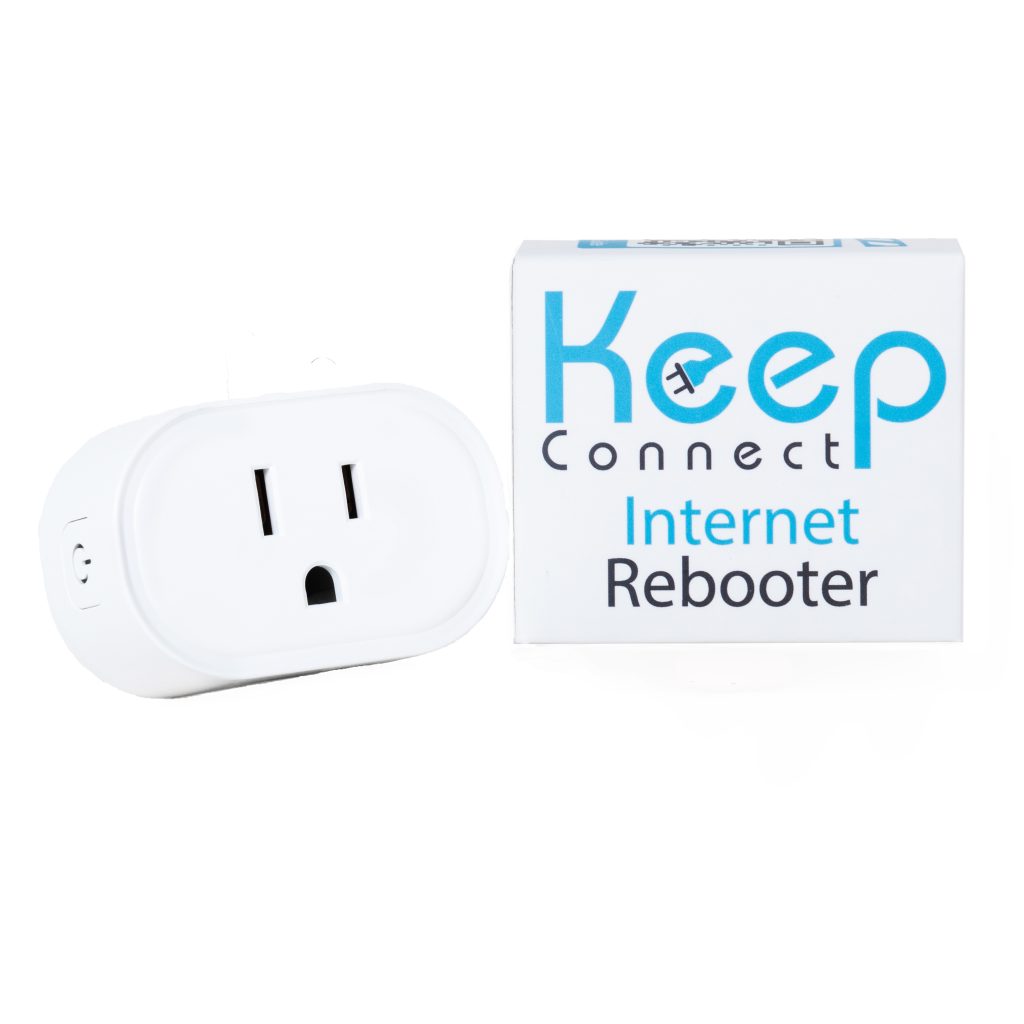
Keep Connect
The essential auto-rebooter
- Constantly monitors your internet health, 24/7/365
- Automatically reboots your router or modem the moment the connection drops
- Works with no app or account — plug it in over Wi-Fi (WPS) and it just works
- Optional email or SMS alerts when a reset happens or your ISP goes down
- Compact enough for apartments and small spaces
- Optional Premium Cloud app (iOS & Android) for remote management
Most homes & apartments · 4 × 2 × 2 in
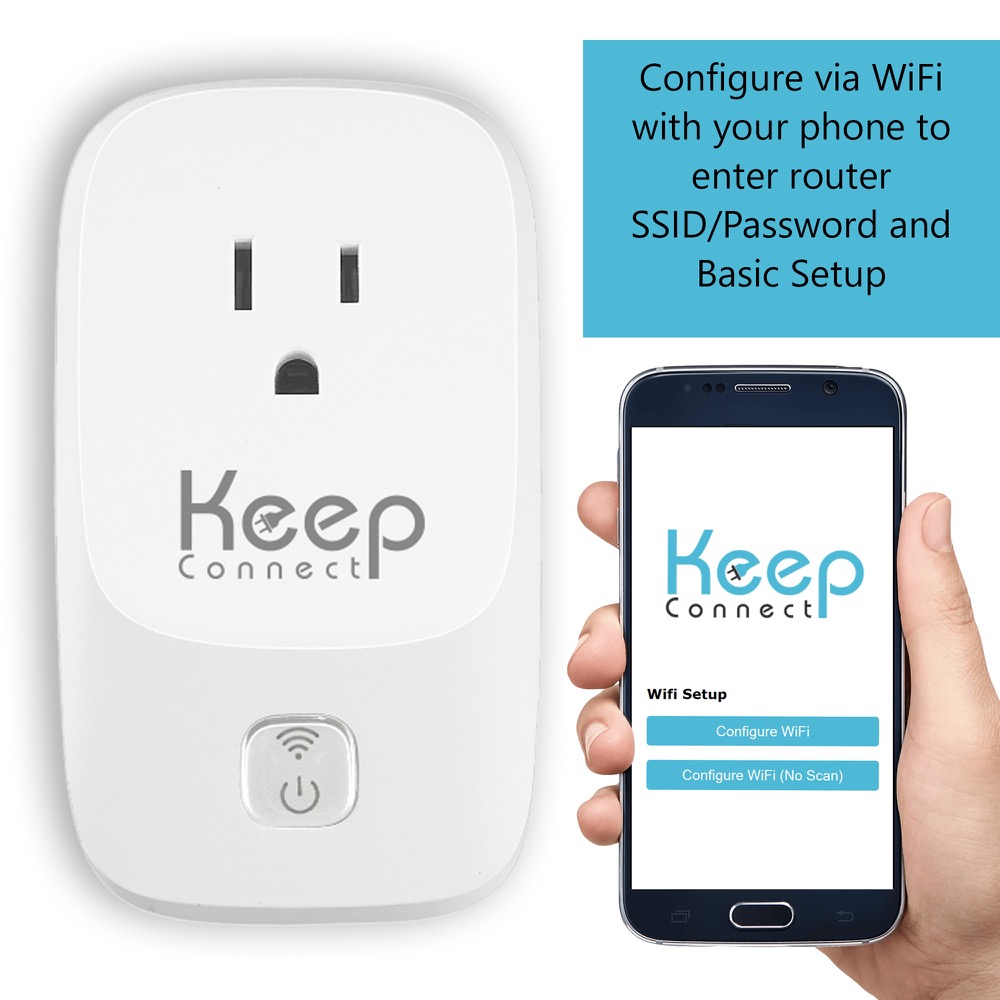
Keep Connect MAX
Most capableScheduling + smart-home power
- Everything in Keep Connect — monitoring and automatic reboot on outage
- Scheduled periodic reboots to stop slowdowns before they start
- Advanced heartbeat monitoring with ISP-outage alerts
- Built for smart homes — cameras, garage doors, and automation that can't drop offline
- Reboots your router and/or modem
- Optional Premium Cloud app for remote, multi-location management
Smart homes & whole-home uptime · 5 × 3 × 3 in
“It all happened without me noticing or having to physically intervene. … For me, that was money well spent.”
Frequently asked questions
How do I reboot my router the right way?
What's the difference between rebooting and resetting my router?
How long should I leave my router unplugged?
Should I reboot the modem or the router first?
How often should I reboot my router?
Will rebooting my router delete my settings or change my Wi-Fi password?
Does rebooting my router give me a new IP address or a speed boost?
Can I reboot my router automatically or on a schedule?
Read next
Reboot vs. Reset Your Router: The Critical Difference
One clears a glitch in 30 seconds; the other wipes your Wi-Fi name and password. Know which button you're about to press.
ReadWhy Your Router Keeps Dropping (and How to Stop Rebooting It Daily)
Rebooting every day isn't a routine — it's a warning light. The real causes, the fixes, and how to stop being the reset button.
ReadHow Often Should You Reboot Your Router?
Once a month is the sweet spot for most homes — but the real answer depends on your hardware. A practical schedule.
ReadRouter vs. Modem: Which One Should You Reboot?
They look alike and people reboot the wrong one all the time. How to tell them apart — and the order that matters.
ReadWhy Does Rebooting Your Router Fix So Much?
Memory leaks, IP lease conflicts, heat, an overflowing NAT table — the real reasons a 60-second reboot works like magic.
ReadBest Automatic Router Rebooters in 2026
An honest comparison of Keep Connect, smart plugs, ezOutlet, and more — including where each one wins.
ReadAbout the author
Byron Johnson is an engineer and IoT product developer who designed and built Keep Connect, the automatic router rebooter. He has spent years helping people diagnose and fix flaky home and small-business internet. If rebooting by hand gets old, the device he built — Keep Connect — automates the exact sequence on this page.